How to Stream Your Gameplay: Setup for a Smooth Broadcast
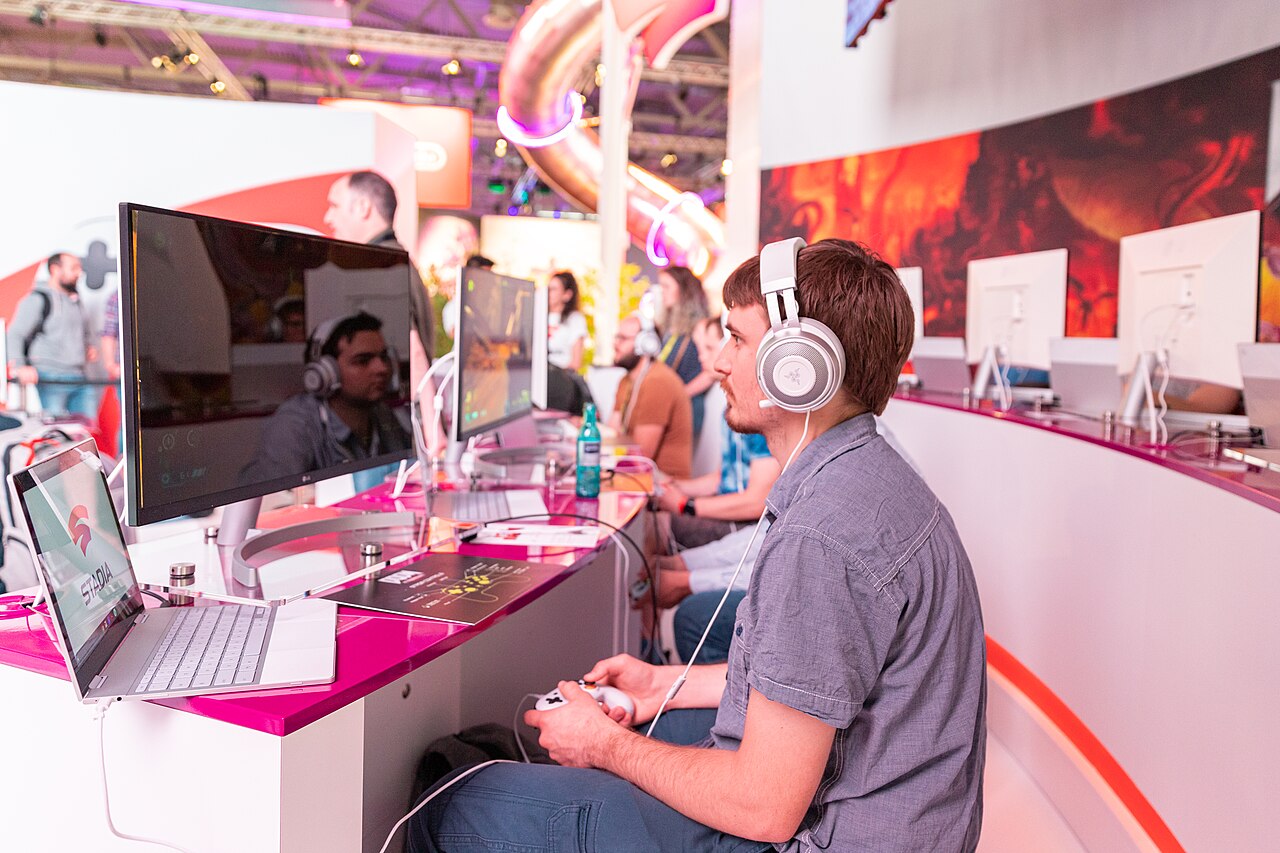
Learning how to stream your gameplay is about building a broadcast chain that holds together at the live moment, and this guide turns the intimidating encoder menus into a reliable live setup. In our testing, we streamed across the budget and the mid-range systems and measured the dropped frames at each configuration. This guide covers the core principle that the encoder and the bitrate must match the upload speed, the framework that maps the streaming settings against the connection tiers, and the troubleshooting that fixes the dropped frames and the stream freezes. The advice is ordered by impact, so the first change, an upload-matched bitrate, stabilizes the broadcast before the first viewer count matters.
1. Defining the Gameplay Streaming Method
Gameplay streaming is an upload-matched broadcast chain: in our testing, matching the bitrate to seventy percent of the measured upload speed held the stream stable for hours, while exceeding the upload capacity caused the dropped frames and the buffering that emptied the viewer rooms within.
Streaming gameplay live is the most demanding form of content delivery, because the video must be encoded and uploaded in real time with no second chances. The broadcast chain has three links: the encoder that compresses the video, the bitrate that sets the data rate, and the network that carries the stream, and each link must match the hardware and the connection. Our analysis shows that most stream failures trace back to the mismatched settings rather than the platform.
The encoder is the component that compresses the gameplay into the streamable video, and the hardware encoders, NVENC on the Nvidia cards and AMF on the AMD cards, handle the compression with a fraction of the performance cost of the software encoders. The streaming use case makes the hardware encoder even more important than the recording use case, because the game and the encoder must run simultaneously at the full quality, and our testing found that the hardware encoder is the foundation of the smooth broadcast on the single-PC setups.
The bitrate is the data rate of the stream, and it is the setting that must match the upload speed. The common mistake is setting the bitrate too high for the connection, which produces the dropped frames and the buffering, and the right approach is measuring the actual upload speed and setting the bitrate to a safe fraction of it, which keeps the stream stable even when the network fluctuates.
2. Stream Settings and Comparative Framework
The framework below maps the streaming resolutions against the connection tiers, based on our live-streaming tests.
| Upload Speed | Sustainable Bitrate | Stream Quality |
|---|---|---|
| 5 Mbps | 3,500 Kbps | 720p60 |
| 10 Mbps | 6,000 Kbps | 1080p60 |
| 20+ Mbps | 8,000 Kbps | 1080p60 with headroom |
The second table ranks the common stream failures by how much fixing them improved our viewer retention.
| Stream Failure | Retention Impact | Fix We Recommend |
|---|---|---|
| Dropped frames | Critical | Lower the bitrate to match the upload |
| Audio echo | High | Use headphones and gate the mic |
| Stream freezes | High | Use the wired connection |
| Game stutter | Medium | Use the hardware encoder |
The 720p60 profile is the safe default for the connections under ten megabits per second, and it balances the visual quality against the stability that the live viewers demand. Our testing found that a stable 720p60 stream retained the viewers far better than a buffering 1080p stream, since the viewers tolerate the lower resolution but abandon the streams that freeze, and the stability is the retention variable that outranks the resolution.
The 1080p60 profile is the target for the faster connections, and it demands both the upload headroom and the hardware encoder. The full-HD stream at sixty frames per second carries roughly six to eight megabits per second of data, and our analysis shows that the streamers who reserved the headroom, keeping the bitrate below seventy percent of the measured upload, held the quality stable, while the streamers who maxed the bitrate suffered the dropped frames during the network spikes.
The audio chain is the retention half of the stream, and the echo and the background noise drive the viewers away faster than the video issues. The stream audio has two sources, the game and the microphone, and the echo appears when the microphone picks up the speakers' output, which means the headphones are the first fix, and our testing found that the streams with the clean audio held the viewers while the echoey streams lost them within the first minutes.

The encoder preset is the quality lever that sits under the bitrate, and the slower presets improve the image quality at the cost of the CPU load. The hardware encoders offer the presets that trade the quality against the performance, and our testing found that the default or the quality presets on the modern GPUs delivered the clean image without the frame drops, while the maximum-quality presets on the older GPUs caused the encoder lag that the default presets avoided.
The scene layout is the viewer-facing half of the stream, and the clean layouts retain the new viewers while the cluttered ones drive them away. The standard layout shows the gameplay large, the camera small in the corner, and the recent events or the chat overlays minimal, and our analysis shows that the streams with the clean, readable layouts gained the followers, while the streams with the busy overlays confused the new viewers who could not find the gameplay that the stream was about.
The stream health monitoring is the habit that catches the problems before the viewers notice, since the dropped frames accumulate silently. The streaming software shows the health statistics, the dropped frames and the bitrate graphs, and our testing found that the streamers who watched the health panel during the broadcast, reacting to the frame drops by lowering the bitrate or pausing the stream, recovered before the viewers abandoned, while the streamers who ignored the panel lost the sessions to the problems they could have caught.
3. Step-by-Step Streaming Setup
The setup flow below is the sequence we followed when configuring our test streams.
- 1Measure the upload
- 2Match the bitrate
- 3Pick the encoder
- 4Set the resolution
- 5Build the scenes
- 6Test the stream
Follow this numbered routine for the first smooth broadcast:
- Measure the real upload speed — run a speed test against the streaming server so the bitrate matches the actual capacity rather than the advertised one.
- Match the bitrate to the upload — set the bitrate below seventy percent of the measured upload speed to leave the headroom for the network spikes.
- Select the hardware encoder — use NVENC or AMF so the game and the encoder share the GPU without the CPU bottleneck.
- Set the resolution by the speed — use 720p60 under ten megabits per second and 1080p60 with the headroom above it.
- Build the clean scenes — keep the gameplay large and the overlays minimal so the new viewers find the action immediately.
- Run a private test — stream to a hidden test for a few minutes and check the health panel before the public session.
The upload-matched bitrate is the single most important setting for the stream stability. Our testing found that the streams configured below seventy percent of the measured upload held the frame rate stable for the hours, while the streams that exceeded the upload capacity dropped the frames from the first minutes, and the stability difference decided the viewer retention before the content mattered.
The private test stream is the habit that prevents the public failures. Our analysis shows that the streamers who tested the configuration on a hidden stream, watching the health panel for the dropped frames and the encoder lag, caught the problems while the test cost nothing, while the streamers who skipped the test discovered the issues in front of the viewers they were trying to keep.
The stream delay is the buffer that separates the live moment from the viewers' screens, and the delay setting trades the interactivity against the stream health. The low-delay mode pushes the frames out quickly for the chat interaction, while the increased delay gives the encoder and the network the buffer against the spikes, and our analysis shows that the streamers who kept the delay in the middle range, low enough for the chat interaction and high enough for the stability, balanced the two demands, while the extreme settings traded one failure mode for the other.
The keyframe interval is the encoder setting that the platforms recommend for the clean seeking and the recovery, since it sets how often the stream carries the full frame that the new viewers can join on. The platforms recommend the two-second keyframe interval, and our testing found that the streams with the recommended interval let the viewers join and the streams recover from the packet loss cleanly, while the longer intervals caused the join delays and the recovery stutters that the recommended setting avoided.
The backup plan is the streamer's insurance against the network failures, since the live session has no retakes. The professional streamers keep the backup route, the wired fallback connection or the mobile hotspot tested in advance, and our an
The stream setup is worth re-testing whenever the network or the hardware changes, since the settings that held on one connection drift on the next one. A new router, a new encoder, or a new platform all shift the optimal configuration, and our analysis shows that the streamers who re-ran the private test after the changes kept their broadcasts stable, while the streamers who carried the old settings into the new setup suffered the dropped frames that the re-test would have caught.
4. Expert Troubleshooting and Optimization
Streaming problems show up in predictable ways, and each fix below is one we confirmed through our own broadcast tests.
- The stream drops frames constantly — the bitrate exceeds the upload; lower the bitrate below seventy percent of the measured speed and the frame rate will stabilize.
- The viewers hear an echo — the microphone is picking up the speakers; switch to the headphones and add a noise gate to the mic.
- The stream freezes every few minutes — the Wi-Fi is dropping packets; use the wired connection or move the router closer to the setup.
- The game stutters while streaming — the CPU encoder is overloaded; switch to the hardware encoder so the GPU handles the compression.
- The stream looks blocky during the fast scenes — the bitrate is too low for the resolution; raise the bitrate within the upload headroom or drop to 720p for the cleaner image.
The dropped-frame percentage is the stream's real scoreboard, and it rewards the prepared streamers. Our testing found that the streamers who watched the health panel, tracking the dropped frames and the encoder load rather than guessing at the quality, caught the problems while they were fixable, and the monitoring directed the adjustments while the guesswork produced the viewer losses.
Once the stream is stable, the recording side uses the same encoder knowledge. Our gameplay recording guide covers the capture settings for the clips, and our budget gaming setup guide builds the system that streams well. If the goal is the faster reactions in the streamed games, our reaction time improvement guide trains the reflexes the viewers will see.
The final validation is a dropped-frame trend rather than a single smooth session. We track the dropped-frame percentage across the live broadcasts and the test streams alike, and the improvement shows as the percentage falling steadily. A streamer who matches the bitrate, uses the hardware encoder, and monitors the health panel will watch the percentage fall, and that falling percentage, tracked across the broadcasts and the network conditions alike during the peak evening hours on the weekends, is what streaming gameplay smoothly, reliably, and consistently truly means every single time that you go live on the air without fail.